 CloudEdge App Docs
ANRAN Wireless HD Camera Quick Start Guide
Set up the ANRAN Wireless HD security camera with the CloudEdge app — hardware overview, account registration, Wi-Fi pairing, key functions and FAQ.
This quick start guide covers the ANRAN Wireless HD camera and how to add it to the CloudEdge app, including hardware overview, account registration, Wi-Fi setup, functions and troubleshooting.
Dear Customer, thank you for choosing our products! To have a better operation we suggest you read the User Manual first and keep it for future reference. If any questions please contact us by email to our support team for help.
For more help with installation and connection issues, see the Camera FAQs.
1. Introduction
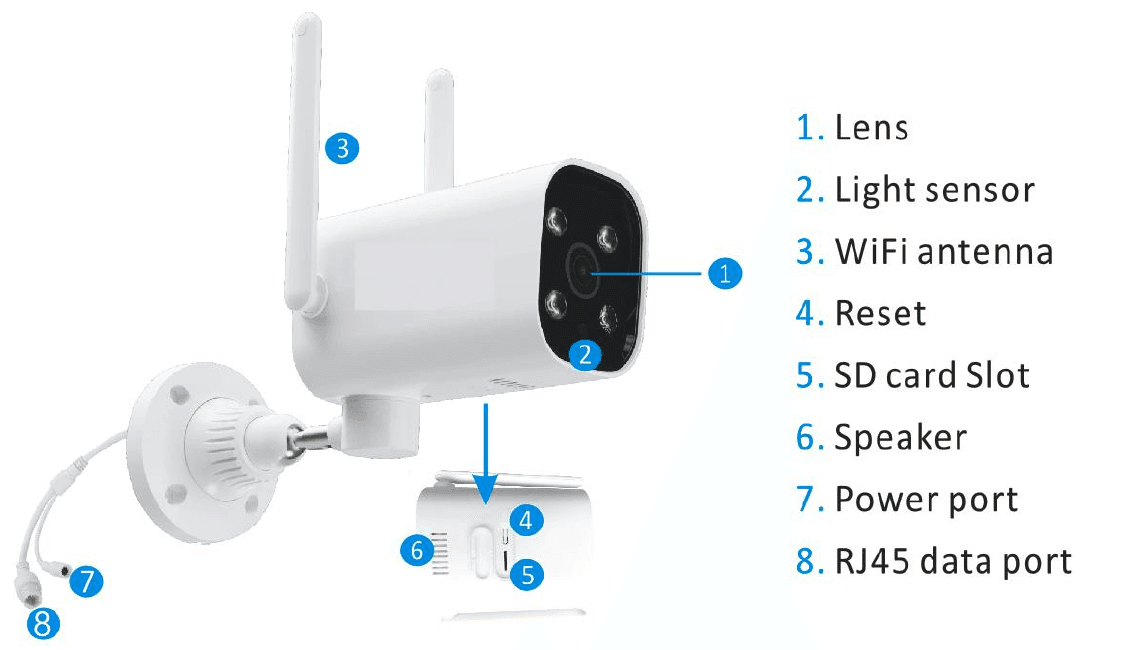
- 1. Lens
- 2. Light sensor
- 3. WiFi antenna
- 4. Reset
- 5. SD card Slot
- 6. Speaker
- 7. Power port
- 8. RJ45 data port
- SD Card Port — Supports micro SD card for local storage (Max 128GB).
- Reset button — Used to restore the camera to factory settings (Press and hold on 5-8s).
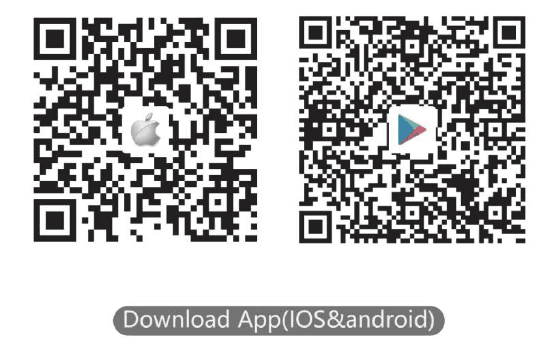
2. Download the "CloudEdge" APP
Download and install the "CloudEdge" APP.
- from Google play
- from Apple Store
- or Scan the following QR code
3. Register an account
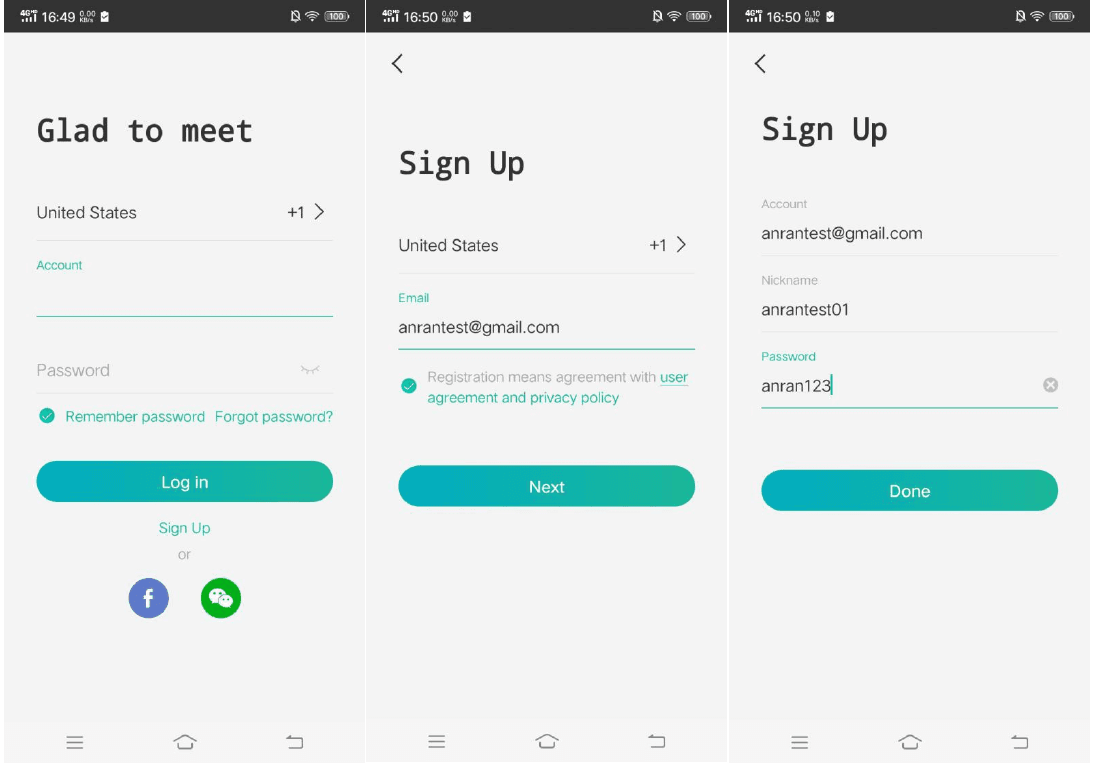
Open the APP to sign up an account. Go to the login interface, and click "Sign Up".
Sign up with your email address, and click "Next".
Set up a "Nickname" and "Password" for your APP, click "Done" to complete.
4. Set up WiFi for the camera
Put both of your mobile phone and camera near the router, and the distance should be 5-10m.
Log in to "CloudEdge", then tap the "+" icon in the center. Tap "Camera" to add device.
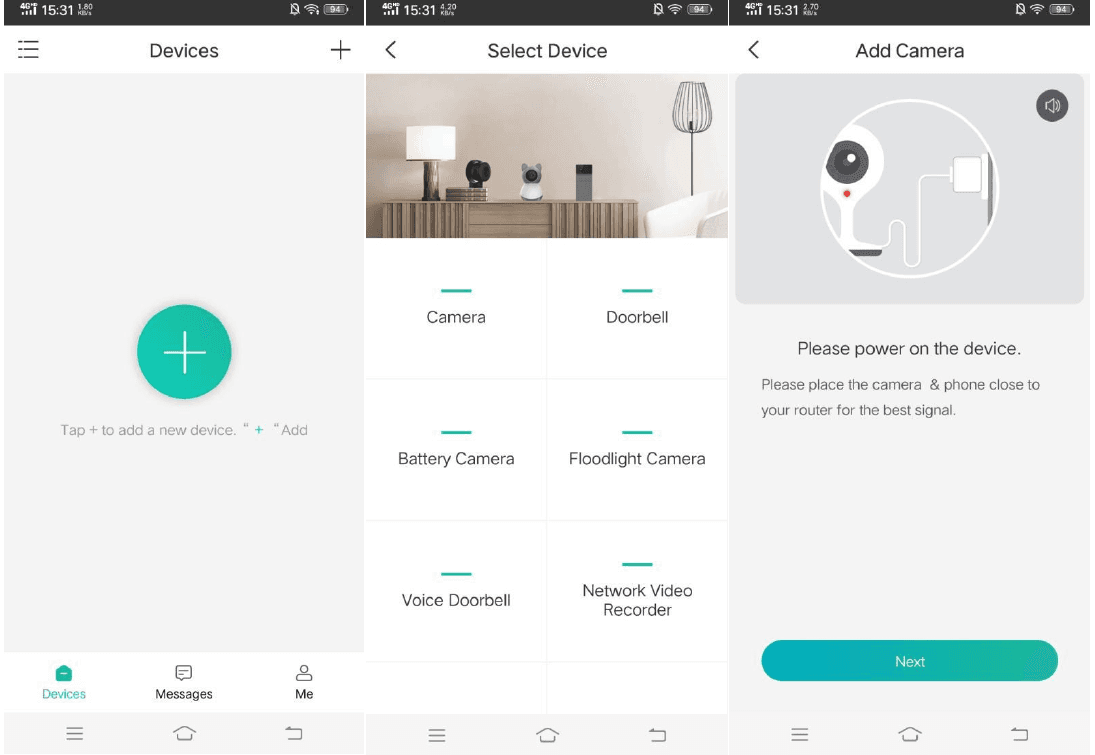
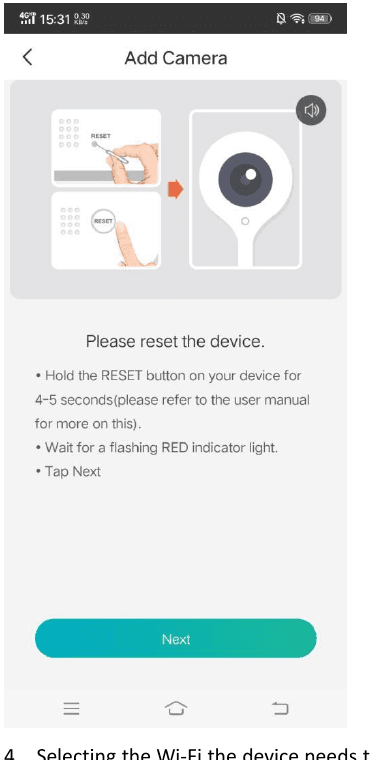
Reset the device and wait for a flashing RED indicator light, then tap "Next".
Select the Wi-Fi the device needs to connect with (your home Wi-Fi), input the password and click "Next".
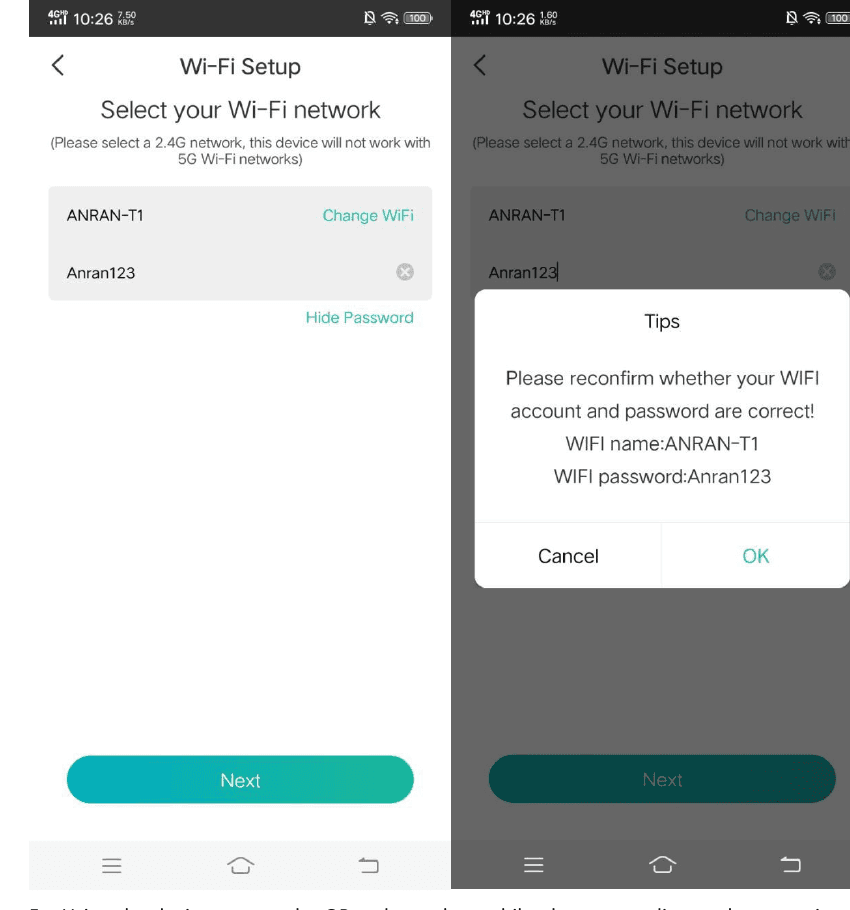
Please select a 2.4G network, this device will not work with 5G Wi-Fi networks.
Using the device to scan the QR code on the mobile phone according to the operation the figure shows, then proceed to the next step after hearing the prompt tone.
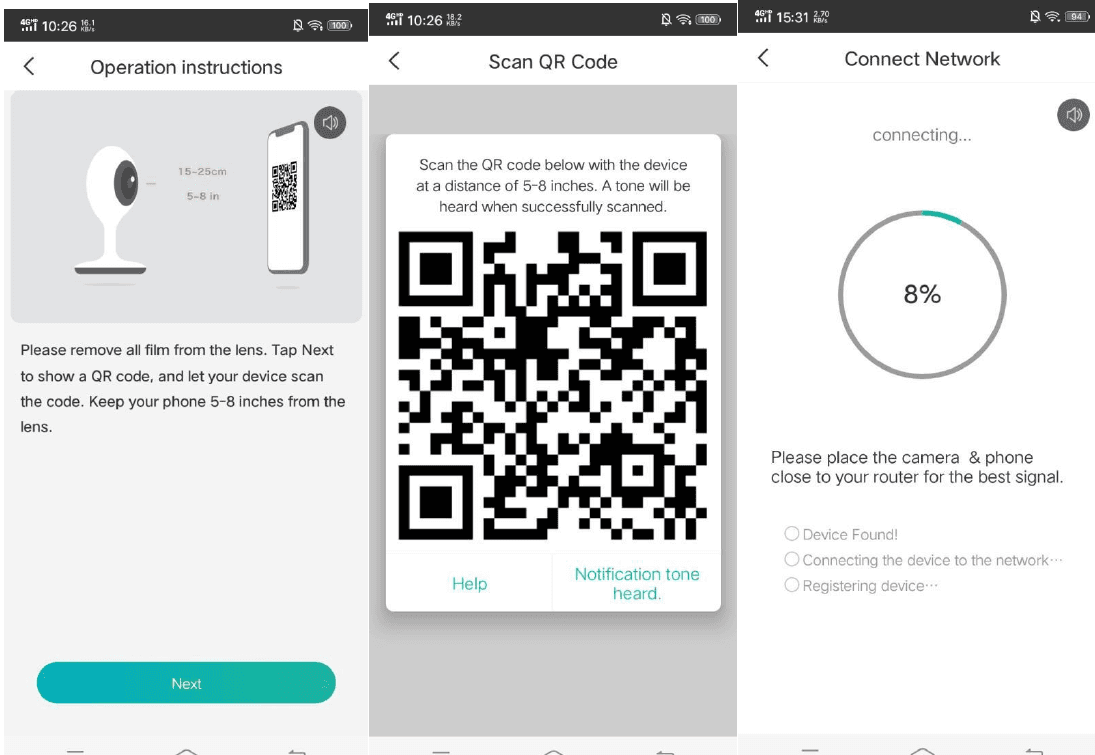
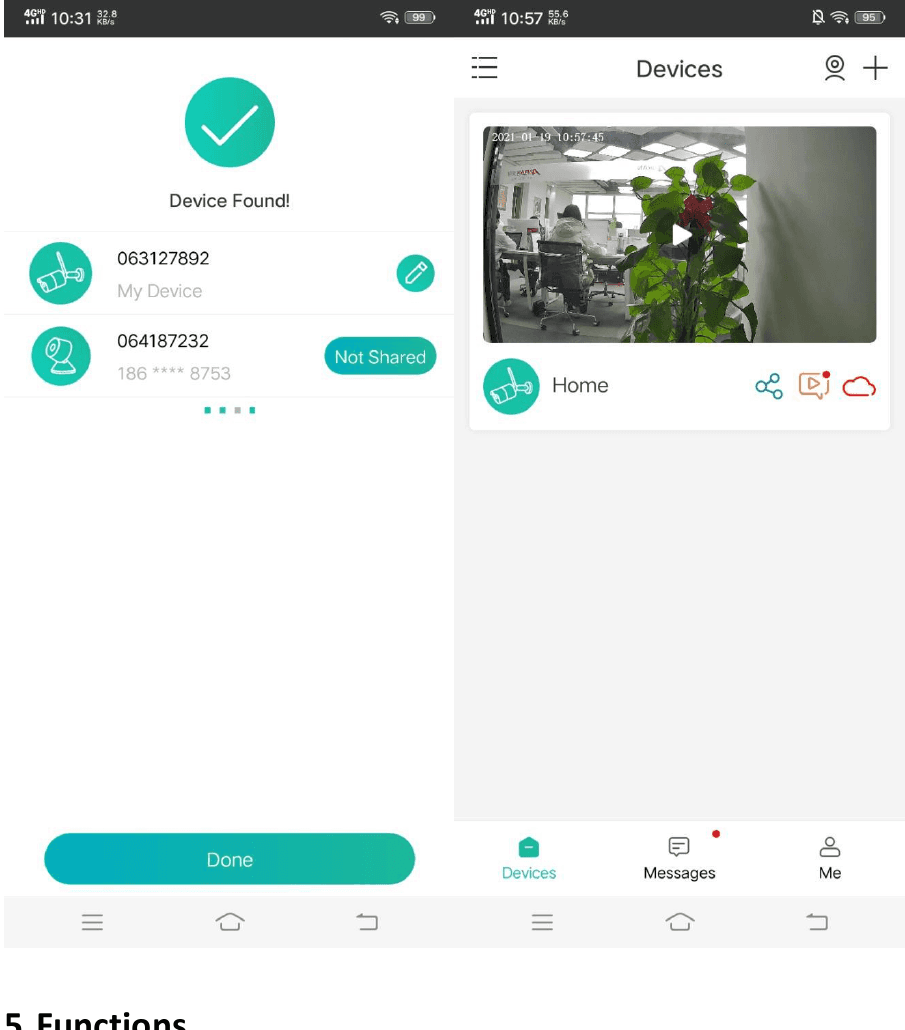
After the network configuration is successful, set the name and password for the device to add successfully; then you can view the camera screen in real time.
5. Functions
Record
Using SD card or Opening the Cloud-Storage Service, to keep recording for every moment.
Day & Night
Powerful night vision means no interruptions, even in complete darkness.
Two-way audio
When you see a visitor from the live view of camera, you can call and then communicate with the visitor by your App function.
6. FAQ
Q: The device cannot be previewed properly?
A: Check whether the network is normal, you can place the camera close to the router, and if not, it is recommended to reset the device and add it again.
Q: Why is it still in the list of devices after reseting?
A: The reset device only resets the network configuration of the camera, but cannot change the configuration on the App, remove the camera, and must be deleted by the App.
Q: How to cut the camera network to another router?
A: First remove and reset the device on the App and then configure the device again by the App.
Q: Why doesn't the device identify the SD card?
A: It is recommended to plug in SD card after power cut. Confirm whether the SD card is normally available and the format is FAT32. And the TF card can't be identified when the internet environment is not good.
Q: Why I can't get the notifications with my cell phone App?
A: Please confirm that the App has been running on the phone, and the relevant reminder function has been opened; Message notification and authority confirmation in the mobile phone system have been opened.
PARIS RHONE PE-BBM002 Baby Monitor
User manual for the PARIS RHONE PE-BBM002 baby monitor, covering safety, product diagrams, installation, camera/app connection, monitor features, and specifications.
ANRAN HD WiFi Security Camera Quick Start Guide
Quick start guide for the ANRAN HD WiFi security camera, covering what's included, product overview, app download, mounting, account registration, and step-by-step WiFi pairing through the CloudEdge app.