 CloudEdge App Docs
Cancel Subscription via Apple App Store
Detailed guide for canceling iOS subscriptions through the App Store or iPhone Settings app
Cancel Subscription via Apple App Store (iOS)
Apple offers two primary methods to cancel automatic renewal from the App Store.
Method 1: Cancel in Apple App Store
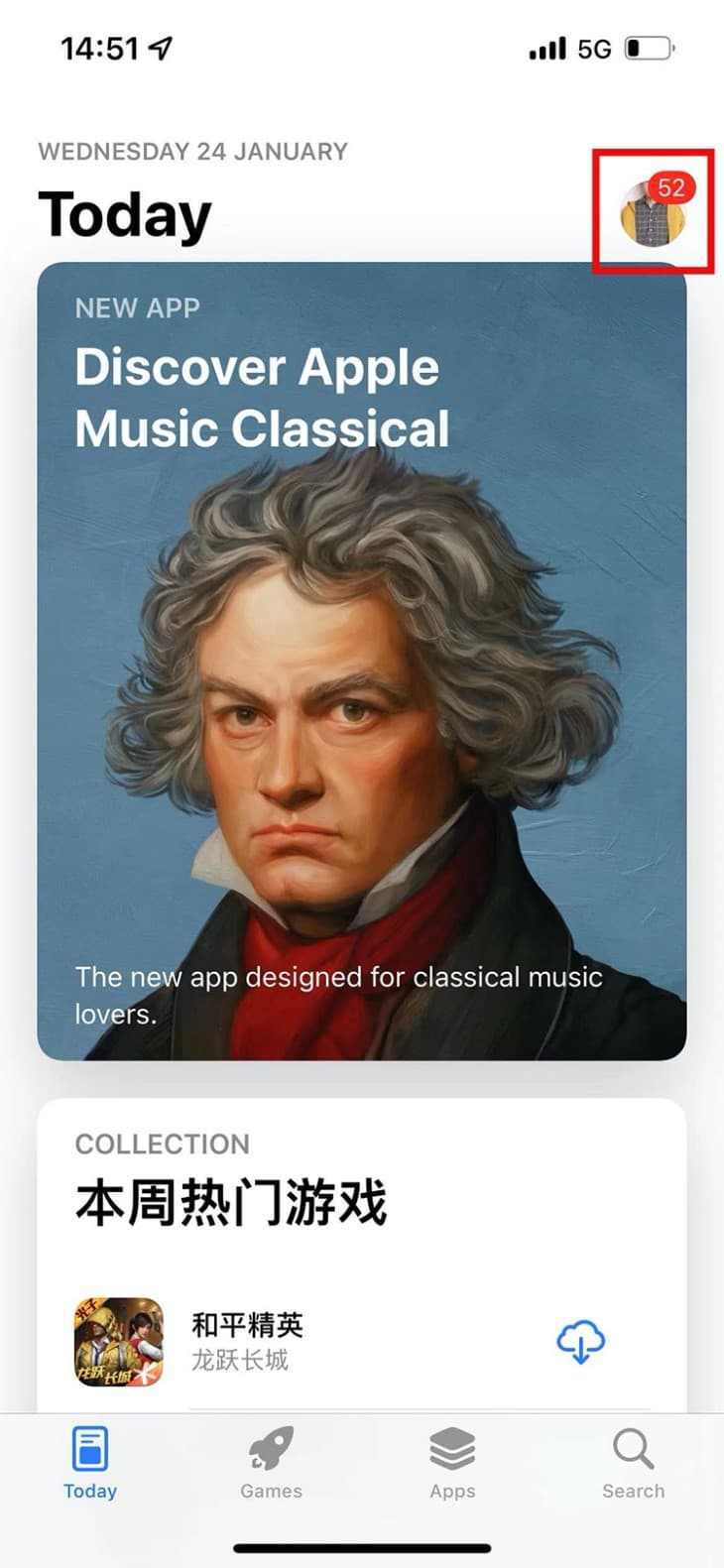
Step 1: Open App Store
Open the Apple App Store and tap the avatar icon in the upper left corner.
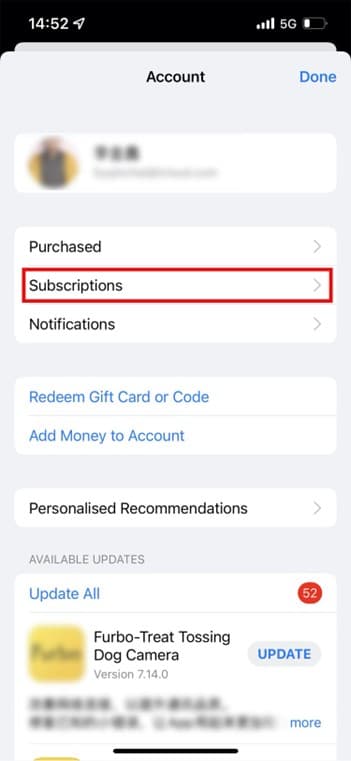
Step 2: Access Apple ID
Navigate to the Apple ID interface and select the Subscriptions section.
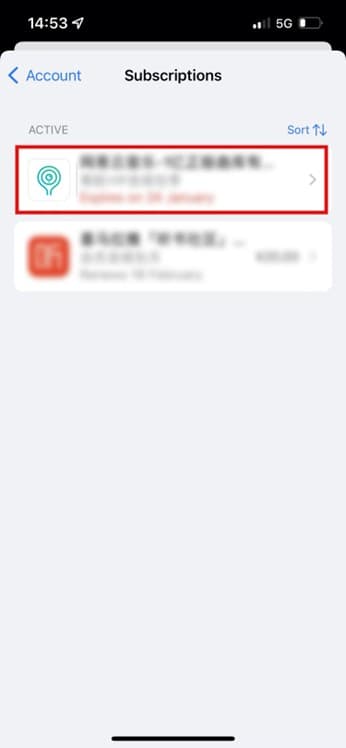
Step 3: Choose Subscription
From the subscription list, choose the service requiring cancellation.
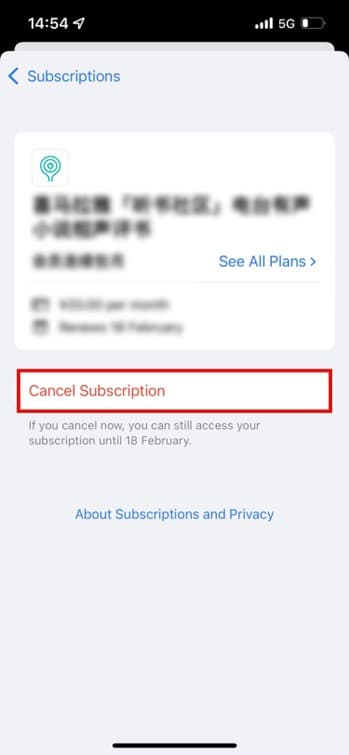
Step 4: Unsubscribe
On the order details page, select the Unsubscribe option.
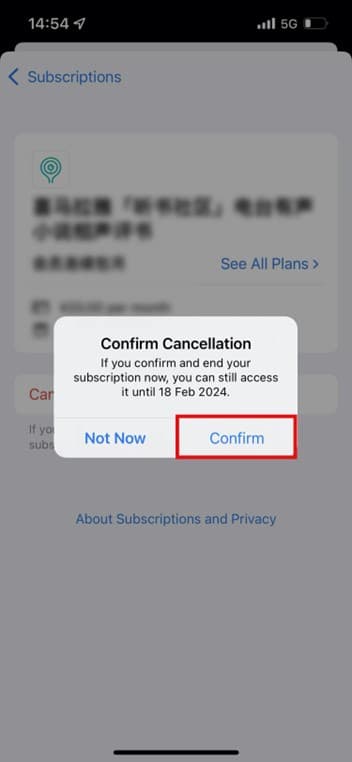
Step 5: Confirm
Confirm the action by clicking Confirm in the popup window.
Method 2: Cancel in iOS Settings
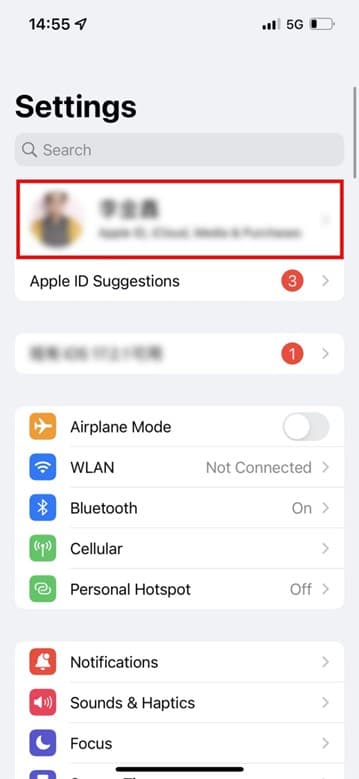
Step 1: Access Settings
Access iOS Settings and tap the avatar icon at the top.
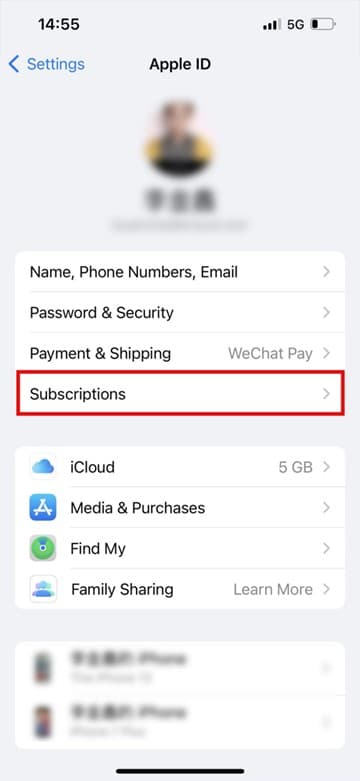
Step 2: Open Subscriptions
Open the user profile page and select the Subscriptions option.
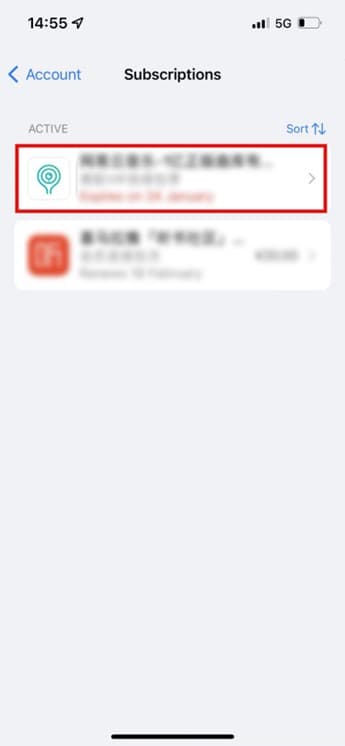
Step 3: Select Service
From the subscription list, tap the service to cancel.
Step 4: Cancel Subscription
On the editing subscription page, click Unsubscribe.
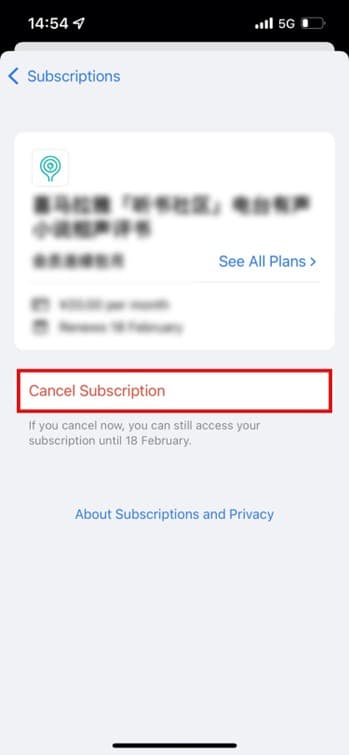
Step 5: Confirm Cancellation
Select Confirm in the popup notification to finalize cancellation.
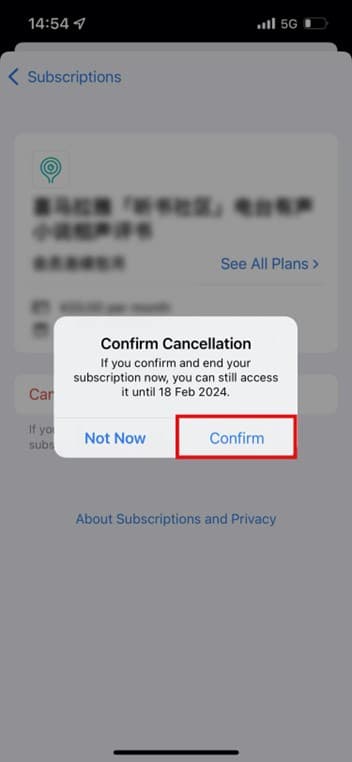
What Happens After Cancellation
- Immediate Effect: Auto-renewal is canceled immediately
- Access Period: You retain access to premium features until your current billing period ends
- Confirmation: Apple will send you a confirmation email
- No Charges: You won't be charged for the next billing cycle
- Status Display: Subscription will show as "Active until [date]"
Troubleshooting
Can't Find Subscriptions
If you don't see the subscriptions option:
- Make sure you're signed in with the correct Apple ID
- Update your iOS to the latest version
- Check if the subscription was made on a different Apple ID
- Look in the App Store purchase history
Cancel Button is Missing
If you don't see the cancel or unsubscribe option:
- The subscription may already be canceled
- It might be managed by a family member (Family Sharing)
- Contact Apple Support for assistance
Family Sharing Subscriptions
If the subscription is shared via Family Sharing:
- Only the family organizer can cancel the subscription
- Individual members cannot cancel shared subscriptions
- Contact the family organizer to cancel