 CloudEdge App Docs
Cancel Subscription via Google Play
Step-by-step guide to cancel your subscription through Google Play Store on Android device or web browser
You can cancel your Google Play subscription using either an Android device or a web browser.
Method 1: Cancel from Android Device
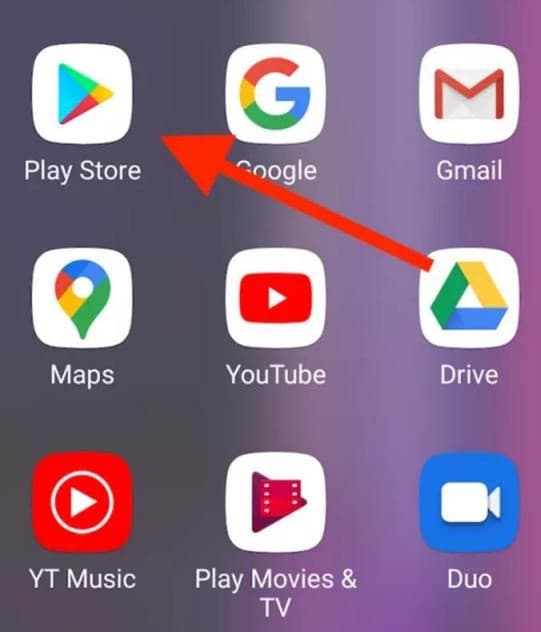
Step 1: Open Play Store
Launch the Google Play Store application (access via app drawer if needed).
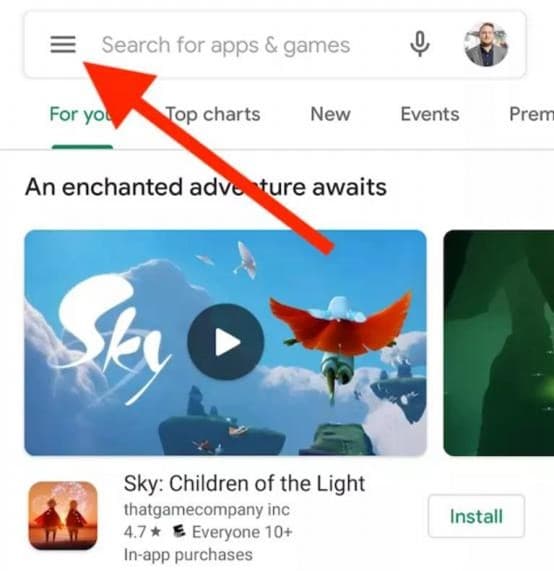
Step 2: Access Menu
Click on the hamburger menu icon in the upper left corner.
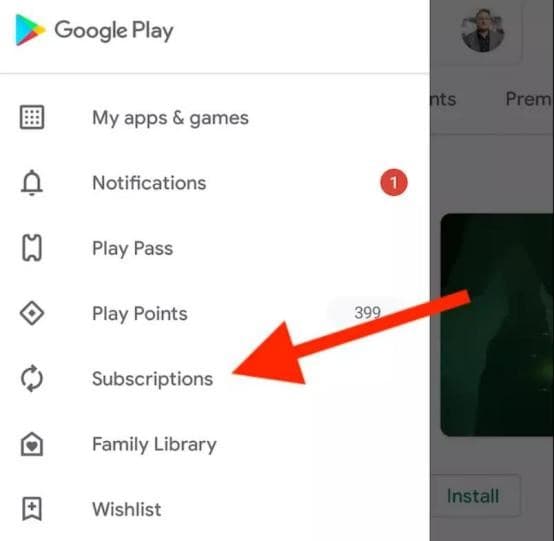
Step 3: Find Subscriptions
Navigate to the Subscriptions option from the menu list.
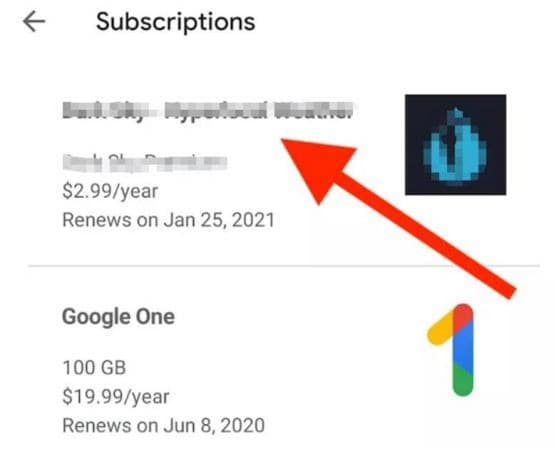
Step 4: View Active Subscriptions
You should now be able to see all your subscriptions paid through the Google Play store.
Step 5: Select Subscription
Choose the specific subscription to cancel.
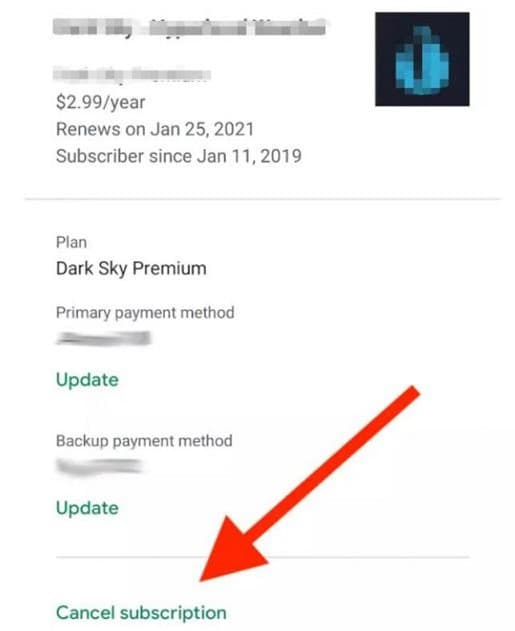
Step 6: Initiate Cancellation
Select the Unsubscribe link at the bottom of the page.
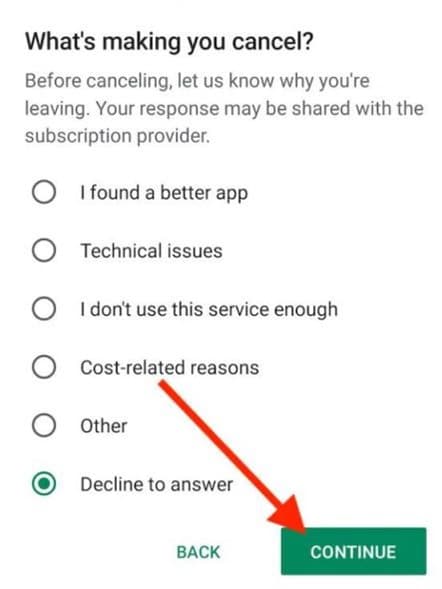
Step 7: Confirm Cancellation
Provide a reason to unsubscribe and then click the Continue button. Confirm by selecting the Cancel Order button to finalize.
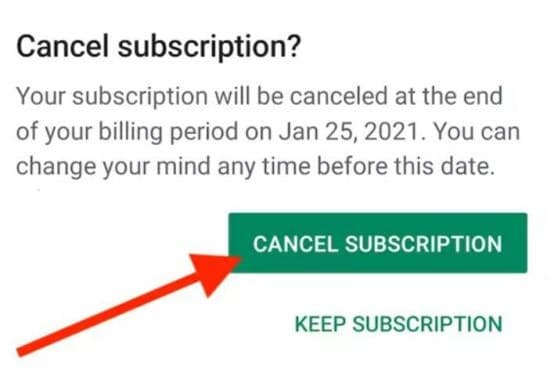
Method 2: Cancel from Web Browser
Step 1: Open My Subscriptions
Open the Google Play Store via web browser and locate My Subscriptions in the left sidebar.
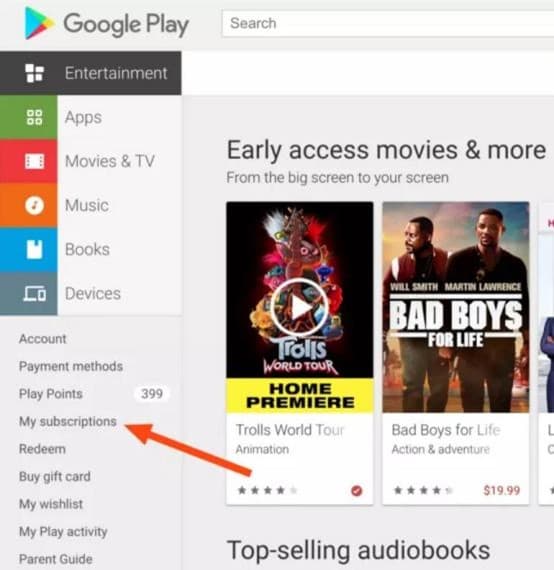
Step 2: Manage Subscription
Find your desired subscription and select the Manage button on the right side, then choose the unsubscribe option from the menu.
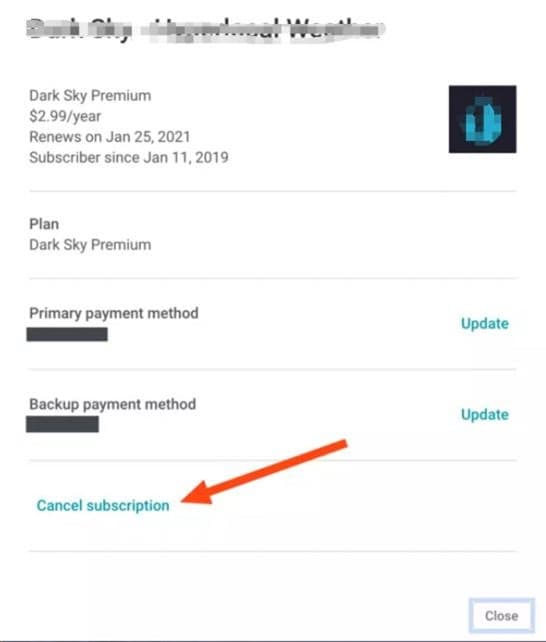
Step 3: Confirm Unsubscribe
Confirm by clicking the unsubscribe button.

What Happens After Cancellation
- Immediate Effect: Your subscription will not renew automatically
- Access Period: You retain access to premium features until your current billing period ends
- Confirmation: Google will send you a confirmation email
- No Charges: You won't be charged for the next billing cycle
Troubleshooting
Can't Find Subscriptions Menu
If you don't see the subscriptions option:
- Update your Google Play Store app to the latest version
- Check if you're signed in with the correct Google account
- Try accessing subscriptions from a web browser instead
Unsubscribe Button is Grayed Out
If the unsubscribe button is not clickable:
- The subscription may already be canceled
- There might be a pending payment issue
- Contact Google Play support for assistance