 CloudEdge App Docs
Cancel Subscription via PayPal
Step-by-step guide to cancel your automatic renewal payments through PayPal
If you subscribed through PayPal, follow these steps to cancel automatic renewal:
Step 1: Access PayPal Settings
Log in to your PayPal account and click on the gear settings icon located in the upper right corner of the screen.

Step 2: Navigate to Payment Options
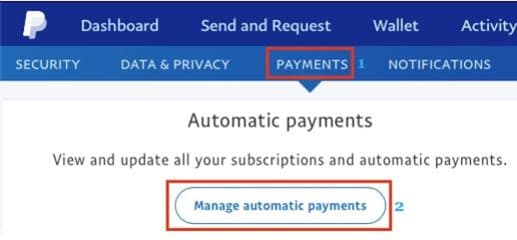
Access the settings menu and navigate to the Payment section, then select the option to manage automatic payment arrangements.
Step 3: Cancel the Subscription
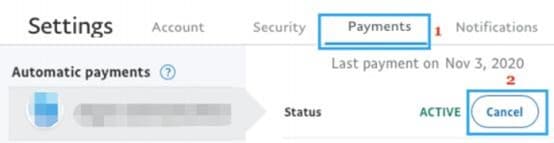
On the next screen, select the payment you want to cancel. After opening, click the Cancel button.
What Happens After Cancellation
- Immediate Effect: Your automatic renewal is canceled immediately
- Access Period: You retain access to premium features until your current billing period ends
- Confirmation: PayPal will send you a confirmation email
- No Charges: You won't be charged for the next billing cycle
Troubleshooting
Can't Find Automatic Payments
If you don't see the automatic payments section:
- Make sure you're logged into the correct PayPal account
- Check if you used a different payment method
- Look for the subscription in your PayPal transaction history
Cancel Button is Grayed Out
If the cancel button is not clickable:
- The subscription may already be canceled
- There might be a pending transaction
- Contact PayPal support for assistance