 CloudEdge App 文档
Jennov PTZ 相机快速入门指南
Jennov 高清 WiFi PTZ 安全摄像机的设置和操作指南,涵盖安装、CloudEdge 应用程序中的 WiFi 配对、录制、移动警报、夜视和设备共享。
本指南介绍如何使用 CloudEdge 应用程序 安装和操作 Jennov 高清 WiFi 安全摄像头。
有关 WiFi 配对和相机故障排除的更多帮助,请参阅相机常见问题解答。
1. What's Included
- Camera
- 螺丝包
- 电源适配器
- Sticker
- Warning Sticker
- User Manual
下载 CloudEdge 应用程序
在 Apple App Store 或 Google Play 上搜索“Cloudedge”即可下载该应用程序。
- 来自 Google Play
- from Apple Store
- 或扫描手册中提供的QR代码
2. 产品概述
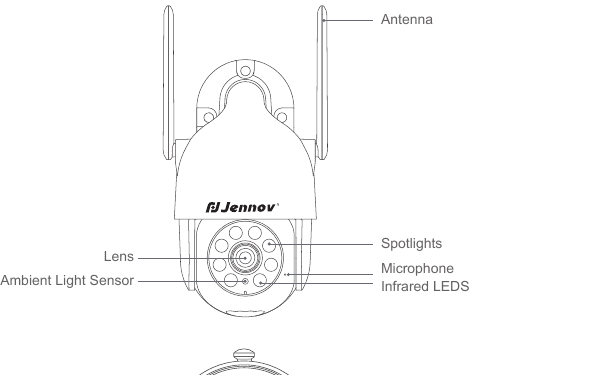
- 天线
- 聚光灯
- 镜头
- 麦克风
- 环境光传感器
- 红外 LED
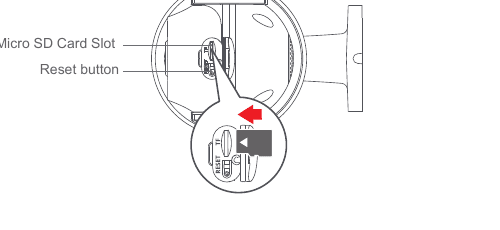
- Micro SD 卡槽
- 重置按钮
注意:请按照图示方向插入Micro SD卡。如果插入不正确,Micro SD 卡可能会卡住,并且设备可能会损坏。
- SD 卡端口: 支持微型 SD 卡进行本地存储(最大 128GB)。
- 重置按钮: 用于将相机恢复至出厂设置(按住 5-8s)。
- 卡容量要求: 8-128GB。
- 读写速度要求: Class10 级别。
- 文件格式: FAT32。
3. 摄像头安装
选择高度和位置
将摄像机 7-10 ft (2-3m) 安装在地面上方。该高度最大化了摄像机运动传感器的检测范围。避免将相机直接暴露在阳光下。
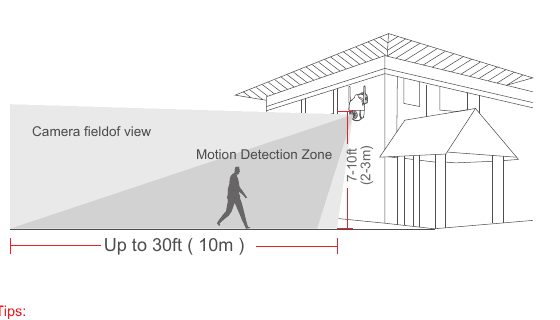
温馨提示: 1.避免将相机放置在阳光直射的地方。 2. 不建议使用电源延长线连接相机。 3、安装摄像头前,请先匹配家里的WiFi后再安装。 4. The camera must be installed in a 90 degree straight line, and other installation methods such as upside down, tilt, etc. are not allowed. 5. When installing the camera, try not to look at any place with strong light source. For example, street lights, glass, sun, green plants within 7-10ft will directly affect the definition and night vision effect of the camera.
安装
按位置贴纸钻孔,钻头:15/64(6mm)。
Insert the plugs.
Tighten the screw.
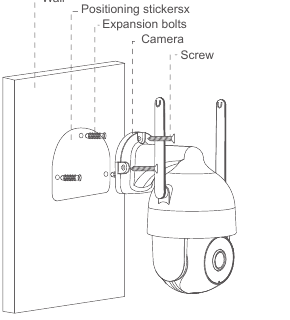
What is required:
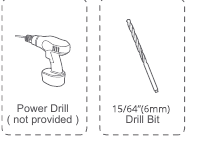
- 电钻(未提供)
- 15/64" (6mm) 钻头
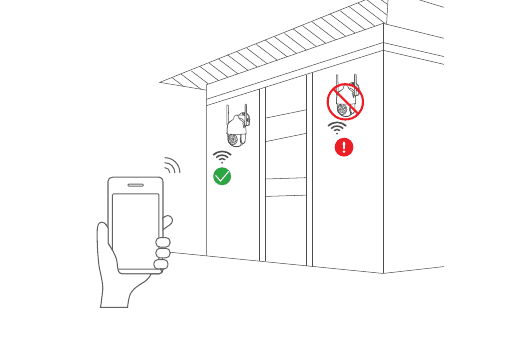
在安装位置测试WiFi信号
Use cell phone to test WiFi signal quality at the installation position before installing the camera, make sure the WiFi router can provide good WiFi signal.
4. APP Sign Up
The Cloudedge app is necessary to operate the camera.注册云存储完全是可选的,并且在使用板载 Micro SD 卡时实际上没有必要。
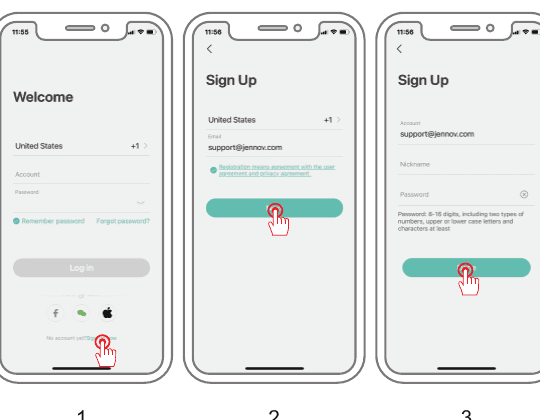
打开 APP 注册帐户。进入登录界面,点击“注册”。
使用您的电子邮件地址注册,然后单击“下一步”。
为您的APP设置“昵称”和“密码”,点击“完成”即可完成。
5. 为相机设置 WiFi
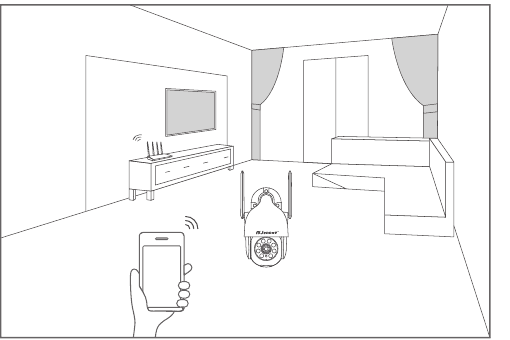
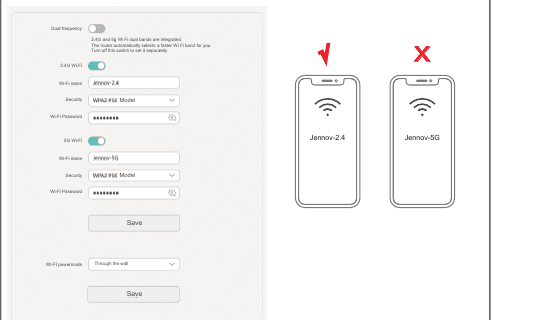
将手机和相机靠近路由器(最大距离为5 meters/16 feet)。
注意:相机只能连接2.4 GHZ WiFi 信号。它不支持使用 5 GHZ 信号。因此,请确保连接到网络上的 2.4 GHZ 信号,如下图所示。
登录“Cloudedge”,然后点击中间的“+”图标。点击“相机”添加设备。
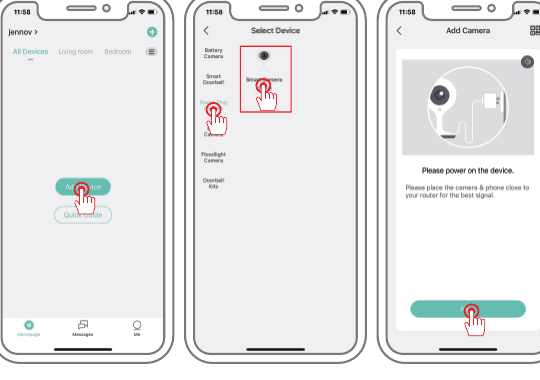
重置设备并等待红色指示灯闪烁,然后点击“下一步”。
选择需要连接的Wi-Fi(你家的Wi-Fi),输入密码,点击“下一步”。
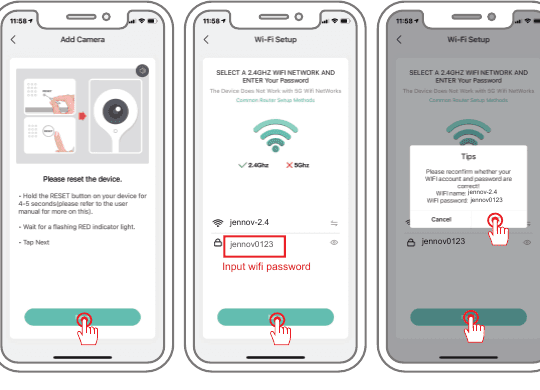
注意:请不要为WiFi密码设置太多特殊符号,否则可能会导致设备无法识别而无法添加。
使用相机扫描手机上的 QR 代码,如下所示。扫描完成后,您将听到提示音,然后按“下一步”。
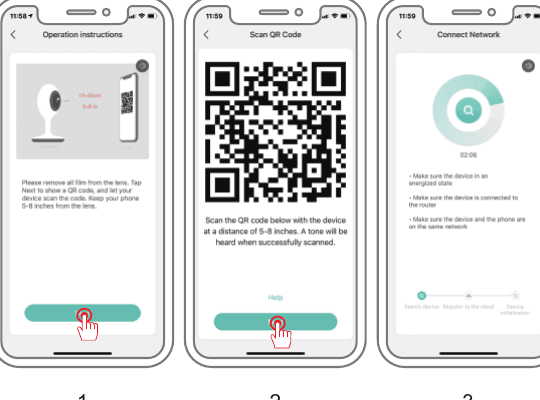
连接成功后,按照应用内安装指南和网络诊断,选择家庭和房间,然后开始查看。
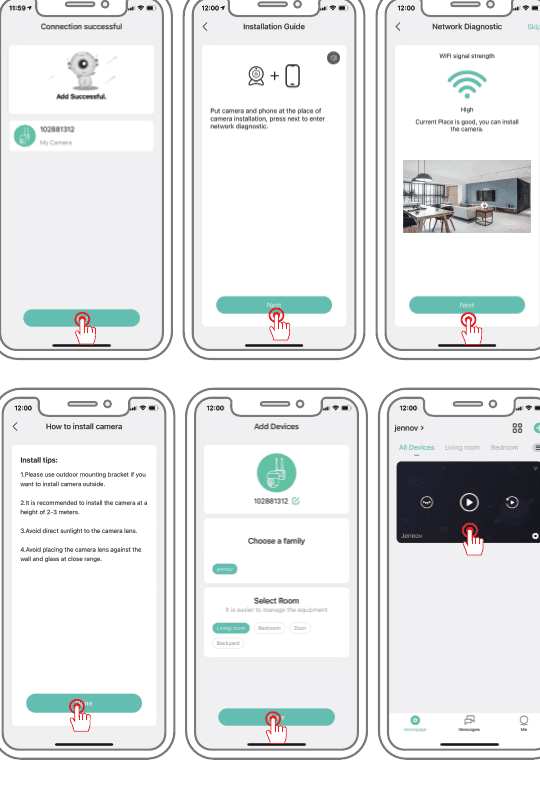
6. 功能介绍及设置
功能介绍
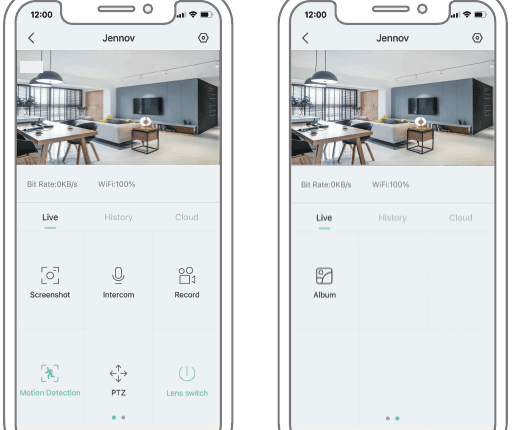
- 截图: 保存手机中当前图片的截图。
- 对讲: 按住对讲可实现双向音频。
- 视频录制: 该视频需要录制到手机内存中。
- **移动检测:**启用此功能后,视频或手机检测到任何移动物体时将收到消息警报推送。
- PTZ: 控制相机上下左右旋转。
- 镜头开关: 打开和关闭可视监控画面(通常用于共享用户)。
- 相册: 可以在此处查看屏幕截图的内容。
运动检测视频和全天视频
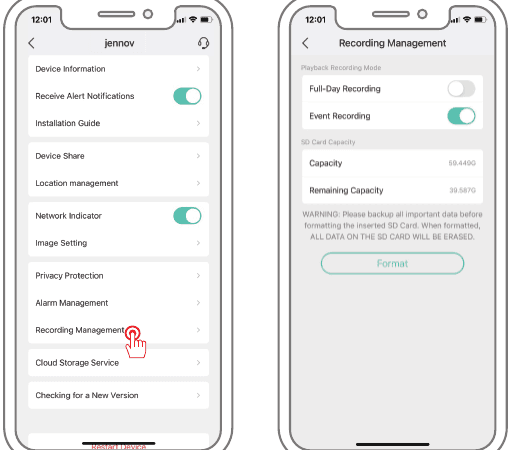
1.全天录像:24小时录像。当有移动物体时,视频格式会变成深蓝色。当没有其他人时,视频格式为浅蓝色。 2. Motion Detection Video Recording: When there is a moving object, the recording format will change to dark blue, and other times it is in standby mode.可设置移动检测录像时间。默认为 1 minute。 (three modes of 1, 2, 3 and minute can be set).
注意:报警设置中应优先设置移动侦测视频。
Alarm Management
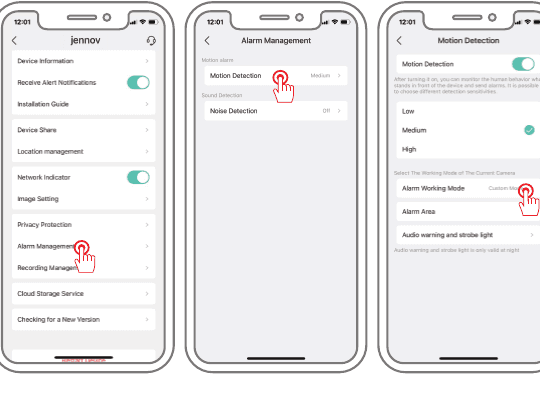
Alarm On: Enter system settings - alarm management - motion detection - enable motion detection, select the appropriate sensitivity, and it is recommended to default.
报警工作模式: 报警录像默认保存时间为1 minute。 (three modes of 1, 2, 3 and minute can be set)
报警区域: 您可以选择需要报警的区域。勾选后,当物体进入或离开设定的报警区域时将触发报警。
Audible And Visual Alarm On:
1.声音报警:当检测到移动或人形时,摄像机会发出声音报警。 2.白光报警:当检测到移动或人形时,摄像机会发出光报警。 3.声光报警:当检测到移动或人形时,摄像机将发出声光报警。
注:声光报警仅在夜间有效。
Recording Time Selection
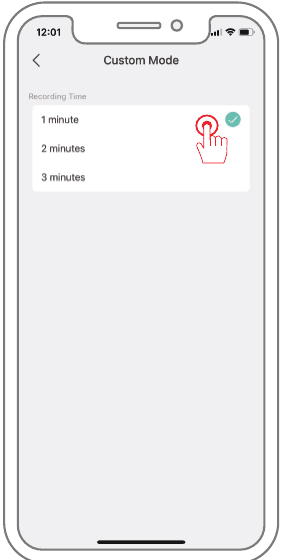
报警工作模式:报警录像默认保存时间为1 minute。 (three modes of 1, 2, 3 and minute can be set).可设置移动检测录像时间。 The default is 1 minute. (three modes of 1, 2, 3 and minute can be set).
图像设置
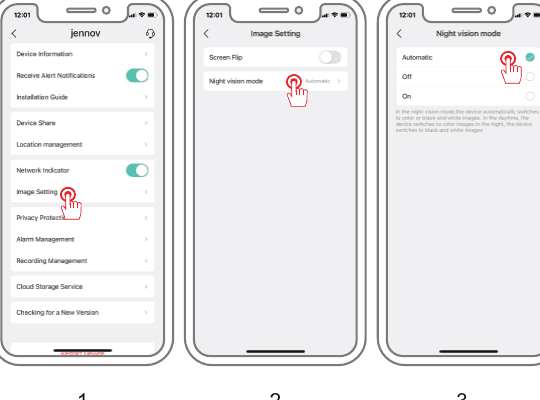
图像设置: 您还可以根据安装环境设置屏幕的翻转。
Night Vision Mode:
- 自动:默认白天为彩色模式,夜间为红外模式。 2、白天:(全彩模式),白天彩色,晚上红外灯不亮,白光也不亮。 3.夜间:(黑白图像),白天彩色,夜间开启红外(黑白图像)。
共享设备
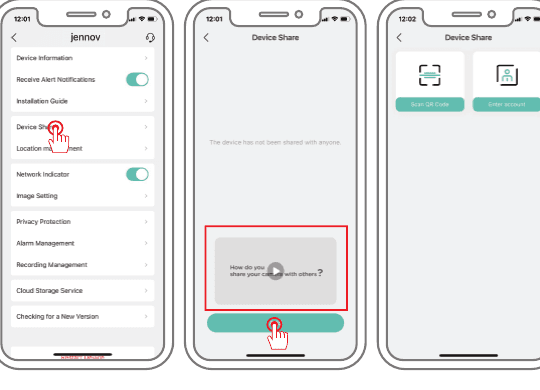
**共享设备:**进入设置-选择设备共享-进入后有一个简短的视频教程,也可以直接点击添加。扫描QR码或输入账号即可分享。
注意:
- 共享的账户还需要下载“cloudedge”应用程序进行注册。
- 共享者仅拥有部分设备操作权限。 3.分享最多支持4台设备同时观看。
删除设备
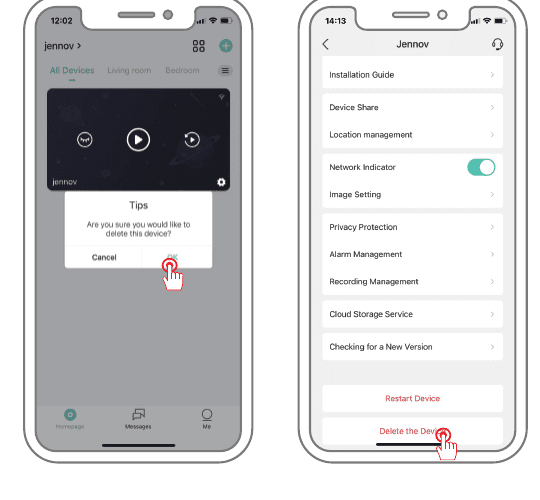
1、在查看界面,长按设备界面,会弹出提示。 Click delete. 2.进入设置-下拉到最下面,点击删除。
7. 常见问题解答
Q: How many device can be shared to others? A:最多支持4台设备同时在线观看。
Q: The device cannot be previewed properly? A: Check whether the network is normal, you can place the camera close to the router, and if not, it is recommended to reset the device and add it again.
问:为什么重置后设备列表中仍然存在? A: The reset device only resets the network configuration of the camera, but cannot change the configuration on the App, remove the camera, and must be deleted by the App.
问:如何将摄像机“连接”到另一个路由器? A:先在App上删除并重置设备,然后再通过App重新配置设备。
问:为什么设备无法识别SD卡? 答:建议在相机电源关闭且完全正确插入的情况下插入SD卡。确保 SD 卡已使用 FAT 32 进行格式化。如果没有,可以通过 Cloudedge 应用程序完成此操作。
问:为什么我无法通过手机应用程序接收通知? A:请确认手机上已运行该App,且已开启相关提醒功能;手机系统中的消息通知和权限确认已开通。
8. FCC 声明
本设备符合 FCC 规则第 15 部分的规定。操作须满足以下两个条件:(1) 该设备不会造成有害干扰,并且 (2) 该设备必须接受收到的任何干扰,包括可能导致意外操作的干扰。
警告:未经合规负责方明确批准的更改或修改可能会导致用户操作设备的权限失效。
Note: This equipment has been tested and found to comply with the limits for a Class B digital device, pursuant to Part 15 of the FCC Rules. These limits are designed to provide reasonable protection against harmful interference in a residential installation.
该设备会产生使用并辐射射频能量,如果不按照说明安装和使用,可能会对无线电通信造成有害干扰。但是,不能保证特定安装中不会发生干扰。如果该设备确实对无线电或电视接收造成有害干扰(可以通过关闭和打开设备来确定),我们鼓励用户尝试通过以下一项或多项措施来纠正干扰:
- 重新调整接收天线的方向或位置。 2.增加设备与接收器之间的距离。
- Connect the equipment into an outlet on a circuit different from that to which the receiver is connected.
- Consult the dealer or an experienced radio/TV technician for help.
FCC 射频暴露声明
The device has been evaluated to meet general RF exposure requirements. The device can be used in fixed/mobile exposure condition.最小间隔距离为 20cm。
注意:屏蔽电缆。 All connections to other computing devices must be made using shielded cables to maintain compliance with FCC regulations.
保修和联系方式
请填写保修信息或扫描手册中的保修QR代码,以激活自订单之日起12个月的免费保修。 After finishing filling or scanning, take a picture and send it to the email ([email protected]). During the warranty period, if any parts of the product are damaged, please contact us immediately and we will provide satisfactory resolution.
联系我们
- www.jennov.com
- [email protected]
- 美国热线:+1 3239021978