 CloudEdge App Docs
BOIFUN Bell J1 Wireless Video Doorbell
User manual for the BOIFUN Bell J1 wireless video doorbell — hardware overview, app setup, Wi-Fi pairing, live view, playback, voice messages, sharing, chime pairing, installation, specifications and FAQs.
This guide covers the BOIFUN Bell J1 wireless video doorbell, set up and operated with the BoifunCam app (or the CloudEdge app as a backup). The content below is translated from the manual's German section.
Need more help? See the .
1. After-Sales Support
Thank you for purchasing our BOIFUN smart video doorbell. We offer a 24-month warranty. If you have any problems or suggestions, feel free to contact us via Amazon message or send an email to our official mailbox ([email protected]). We will provide you with the best service.
Note:
- The smart video doorbell supports only 2.4 GHz Wi-Fi, not 5 GHz Wi-Fi.
- When inserting and removing the battery, mind the plus and minus poles of the battery to avoid an explosion.
- The battery is a Model 18650.
- Please make sure the Wi-Fi signal strength is more than 75%; if the smart video doorbell is far from the signal source, it will not connect successfully the first time.
- If your router is connected to too many devices, the smart video doorbell may not be able to establish a Wi-Fi connection due to an IP address conflict.
- This smart video doorbell does not support any PC browser or software.
- This smart video doorbell supports event recording when the Wi-Fi connection is disconnected.
- Video playback only works in the BoifunCam app. A third-party player is not supported.
- Manual snapshot and recording files are saved on the phone. Event snapshot files are saved in the cloud. Event recording files are saved on the Micro SD card.
- It consumes power when you watch live recordings or videos recorded in the app from the SD card.
2. What's in the Box
Please refer to the checklist below for all components.


- Video doorbell
- USB cable
- User manual
- Indoor chime
- Screws and tools
- Adhesive tape
3. Meet the Doorbell
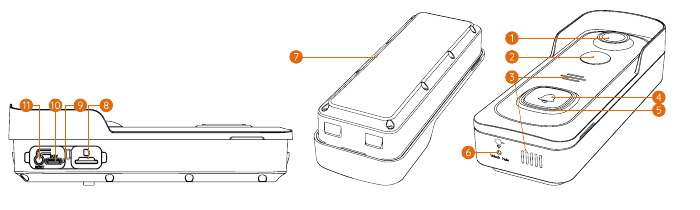
| # | Part | # | Part |
|---|---|---|---|
| 1 | Lens | 2 | Motion sensor |
| 3 | Speaker | 4 | Button |
| 5 | LED indicator | 6 | Base switch |
| 7 | Built-in 18650 battery | 8 | Micro SD card slot |
| 9 | Charging indicator | 10 | Charging port |
| 11 | Reset button |
4. About the Chime

| # | Part |
|---|---|
| 1 | LED indicator |
| 2 | Reset |
| 3 | Volume |
| 4 | Ringtone |
| 5 | Speaker |
Battery Charging
The batteries in the doorbell are not fully charged in accordance with transport safety regulations.
Before installation, please charge the batteries for about 8–10 hours using a USB-compatible charger (not included) and the supplied USB cable.
Battery Management
Battery life depends on the activation frequency. Here are some simple settings to avoid unnecessary power loss:
Set the recording time to about 20–30 seconds, which is normally sufficient for daily use.
It is recommended to lower the sensitivity of "Motion Detection" or to enable the "Human Motion Detection" function.
If the doorbell faces the main road, it is advisable to adjust the angle of the doorbell to avoid unnecessary activation.
Make sure the Wi-Fi signal strength is above 75%. If it is below 75%, the doorbell will be activated constantly. Install the camera near the router or add a Wi-Fi extender to improve the home's Wi-Fi performance. If you have tried this and still cannot solve the problem, please send an email to [email protected].
5. Download the App
Download and install the "BoifunCam" app from Google Play™ or the App Store™. The app is also available by scanning the QR codes with your QR code scanner on your smartphone.

Remark: If your device does not support downloading the "BoifunCam" app, you can search for and download the "CloudEdge" software in the Google Play Store or Apple App Store. You can also use the CloudEdge app.
Notice: A very small number of phone models may not be compatible with BoifunCam. We apologize for any inconvenience. If you encounter this situation, please send us your phone model by email. Our email address is [email protected]. We will optimize the software in time and have prepared a backup software "CloudEdge" for you, which you can download and use from the Google Store or Apple Store.
6. Wi-Fi Setup

Tips for setup:
Make sure the device is within a range of 10 meters or 30 feet from your router.
Check that your router is turned on and working, and perform the configuration near your Wi-Fi router.
Make sure your device is not near devices that cause interference (e.g. microwaves, baby monitors or other electronic devices).
If you have separate network names for the 2.4 GHz and 5 GHz bands, please make sure you are connected to a 2.4 GHz network.
Avoid using special characters or symbols such as (@~!#$%&*…) in both your Wi-Fi name and your password. If your problems could not be solved, you can send an email to [email protected].
Guiding Steps

7. Perform a Test
After setup, tap the live window in the app to perform a test. Then take your doorbell outside to the installation location and perform a test there. Make sure the installation location is covered by a strong 2.4 GHz Wi-Fi signal.
Remark: If the video quality of the doorbell outdoors is not as good as indoors, you may need to bring your router closer to the installation location or invest in a Wi-Fi extender.
8. Live View
| # | Function | # | Function |
|---|---|---|---|
| 1 | Exit live view | 2 | Settings menu |
| 3 | Battery status / Speaker volume on/off | 4 | Wi-Fi signal status |
| 5 | Resolution selection | 6 | Share history |
| 7 | Cloud storage service | 8 | Screenshot |
| 9 | Talk to the visitor | 10 | Voice changer (Original, Clown, Uncle) |
| 11 | Record to phone | 12 | Motion detection on/off |
| 13 | Siren | 14 | Photo album |
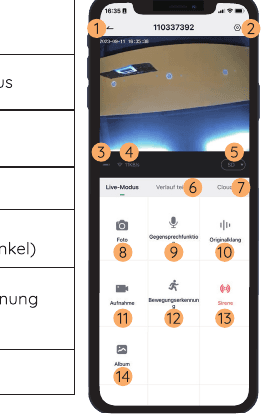
Remark: Live view does not trigger a video recording.
9. Playback
When the Micro SD card is installed correctly, you can play back the video clips recorded after detected motion or visitor calls. (Live view does not trigger a device recording.) You can also back up video clips to the cloud, but only if you have activated the cloud storage service (a free 7-day trial is available).

- Search for video clips by date
- Playback interface
- Search for video clips by event
- Cloud storage interface
10. Leave Voice Messages
A maximum of 3 voice messages (each up to 10 seconds) can be pre-recorded in the doorbell, so you can quickly respond to your visitors when you cannot answer the doorbell call.

Steps: Settings → Voice Messages → Press and hold this symbol to record voice messages → Press the doorbell button → Play the selected voice message in response to the doorbell call.
11. Share Your Device
Share via Account Search
Steps: Settings → Device Sharing → Tap "Add" → Tap "Account" → Enter the account ID → Confirm the sharing.
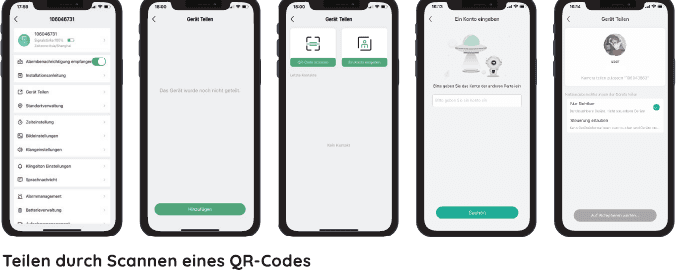
Share by Scanning a QR Code
The new user can show the administrator their QR code and share the device by scanning the QR code.
Find your QR code: Run the BoifunCam app → Tap "Me" → Username → "My QR code" → Let the administrator scan your QR code.

Note:
- Guide your family members to download and install the BoifunCam app and register an account before sharing devices.
- There is no limit on the number of users who can share a device. Only the administrator has access to the settings menu. Other users can only see the live playback.
- All users receive doorbell calls and alarm notifications.
- Multiple users can access the doorbell simultaneously to view live or play back.
12. Connect the Chime
1) Power the Chime
The chime is powered by 3 AAA batteries (1.5V).

2) Click the Reset Button 3) Press the Doorbell Button
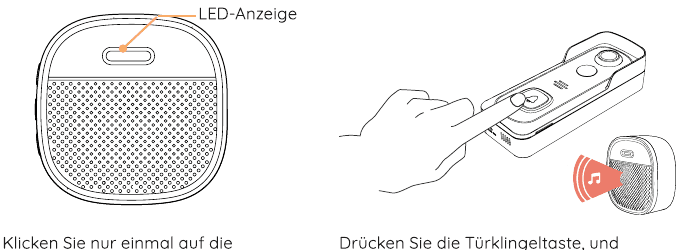
- Click the reset button — Click the reset button on the wireless chime only once. The LED indicator then flashes red, indicating that the chime is in pairing mode.
- Press the doorbell button — Press the doorbell button and it rings. Pairing is successful, and the indicator on the chime lights up blue.
4) Chime Settings
You can open the chime settings page as follows to mute the ringtone reminder, select ringtones, adjust the ringtone volume, or disconnect the connection to the doorbell.

Remark:
- Your doorbell communicates with the chime via radio frequency, not via Wi-Fi. You can even perform the pairing before configuring the doorbell.
- You can add multiple chimes to one doorbell and vice versa.
- Hold down the reset button on the chime for 5 seconds until the indicator flashes red three times. You can also disconnect the connection between the chime and the connected doorbell.
13. Installation
Choose a Location
Your doorbell has a viewing angle of 166 degrees and a detection range of 120 degrees. It is recommended to mount the doorbell at least 160 cm above the ground to ensure the best viewing angle and the best motion detection.

Go Wireless Installation

The doorbell can be removed by pressing the base switch at the bottom.
Mount the bracket: Fasten the bracket to the wall with screws, anchors, or double-sided adhesive tape.
Attach your doorbell to the fixed bracket. Make sure it reaches the bottom where you can hear a click.
All set, congratulations! Now you can press the doorbell button to try it out.
Note:
- Please charge fully before first use (approx. 8 hours).
- Lab-tested battery life: 12 months in standby mode, 6 months with regular use, activated 20 times daily. (Actual battery life may vary due to different activation frequencies.)
14. Specifications
Video Doorbell
Video & Audio
| Item | Value |
|---|---|
| Image sensor | 1/2.7" CMOS |
| OS | Lite-OS |
| Infrared LED | High-performance IR LED with ICR |
| Lens | 1.7 mm / F2.0 |
| Viewing angle | 166° |
| Min. illumination | Color: 0.01 Lux; Black & white: 0.001 Lux |
| WDR | Digital WDR |
| Audio | 2-way audio with noise suppression |
Storage
| Item | Value |
|---|---|
| Storage type | Micro SD card (max. 128 GB) |
| Cloud storage | Supported |
| Recording | Triggered by PIR motion sensor |
Network
| Item | Value |
|---|---|
| Wi-Fi frequency | 2.4 GHz – 2.4835 GHz |
| Standards | IEEE 802.11 b/g/n |
| Live view speed | Within 3–4 seconds |
Software
| Item | Value |
|---|---|
| Application name | BoifunCam |
| OS | iOS, Android |
| Remote view | Within 2–4 seconds |
| Notification | Push notification within 2–4 seconds |
General
| Item | Value |
|---|---|
| Operating temperature and humidity | -20°C ~ 50°C; <90% (non-condensing) |
| Power source | Lithium 18650 battery (3.5V, 3350 mAh × 2) / AC 12V 24V hardwired power / DC 12V hardwired power |
| Standby current | 300 µA |
| Operating current | 250 mA |
| Standby time | 4 ~ 6 months |
| Operating time | 2 ~ 3 months (20 wake-ups per day) |
| Battery charging | DC5V 1A 2A (Micro USB port) |
| Firmware update | OTA (Over-The-Air) |
| Dimensions (mm) | 61 × 41 × 144 |
| Weight (g) | 145 + 90 (battery weight) |
Indoor Chime
General
| Item | Value |
|---|---|
| Power source | AAA battery 1.5V × 3 |
| Power consumption | 0.4W |
| Ringtones | 4 ringtones optional |
| Volume | Max. 100 dB |
| Volume control | Low (mute), medium, high |
| Connection type | Radio frequency |
| Frequency | 433 MHz – 868 MHz |
| Location of use | Indoors |
| LED | Flashing red: Reset / pairing mode. Solid blue: Pairing successful |
| Operating temperature | -10°C ~ 70°C |
| Humidity | < 90%, non-condensing |
| Dimensions (mm) | 65 × 65 × 27 mm |
| Weight (g) | 55 |
15. FAQs
Q1: Why couldn't I set up Wi-Fi for the doorbell?
A1:
- The device only works with 2.4 GHz Wi-Fi, but does not support 5 GHz Wi-Fi.
- The Wi-Fi network is not good; try to keep the camera near the Wi-Fi router during setup.
- The Wi-Fi password is wrong. Please check whether the password contains special characters or whether the network is specially encrypted.
Q2: How can the battery performance be improved?
A2:
- Set the recording time to normally 20–30 seconds, which is sufficient for daily use.
- It is recommended to lower the sensitivity of "Motion Detection" or to open the "Human Motion Detection" function.
- If the doorbell faces the main road, it is advisable to adjust the angle of the doorbell to avoid unnecessary activation.
- Make sure the Wi-Fi signal strength is more than 75%; if it is lower than 75%, the doorbell will be activated constantly. Install the camera near the router or add a Wi-Fi extender to improve the home's Wi-Fi performance.
Q3: How do I know if I have 2.4G or 5G Wi-Fi?
A3: Please look in the user manual of your router or call the network operator for help.
Q4: Must the camera be connected to the same Wi-Fi to view it, or can it be displayed from anywhere over the internet?
A4: You can view the camera from anywhere if your camera is well connected to the internet.
Q5: Are the recordings stored in the cloud? Or are they stored mainly on the integrated SD card?
A5: The camera supports both recording on the SD card and storage in the cloud. You can activate the cloud storage service in the app.
Q6: What happens when the SD card is full?
A6: When the memory card is full, the camera automatically deletes the oldest footage.
Q7: Why does it lose the connection to the Wi-Fi?
A7: Please check the network connection between your phone and the Wi-Fi router. If the network signal strength is less than 75%, the doorbell will be activated constantly. Install the camera near the router or add a Wi-Fi extender to improve the home's Wi-Fi performance.
Q8: Can motion detection be deactivated?
A8: Yes, of course. Recording is triggered by detected motion. You can set the sensitivity or deactivate motion detection in the settings menu.
Q9: Do we get a charger for the batteries?
A9: A battery charger is not included. Please charge the batteries with a USB-compatible charger (DC5V 1A~2A) for about 8–10 hours.
Q10: Can we have 2 or more doorbells in the same home?
A10: Yes, you can add more than one device in the same home.
Q11: What can I do if I have further questions?
A11: If you encounter other problems, please send your order and your problem to [email protected].
Ankway X5-P6 Video Doorbell User Manual
Setup and usage guide for the Ankway X5 / P6 video doorbell and wireless chime with the CloudEdge app, covering the product overview, charging, Wi-Fi pairing, the chime, installation, and troubleshooting.
BOIFUN Video Doorbell
Complete user manual for the BOIFUN smart video doorbell, covering battery charging, app setup with the CloudEdge app, live view, playback, voice messages, device sharing, chime pairing, installation, specifications and troubleshooting.